cse15l-lab-reports
CSE 15L Lab 3
Name : Charvi Shukla
Email : cshukla@ucsd.edu
Introduction
Hello! Welcome to my Lab Report 3 - Week 6 for CSE 15L! In this lab report I will be going over the following:
- Streamlining
sshconfiguration - Setting up Github Access from ieng6
- Copying whole directories with scp -r
Task 1: Streamlining ssh Configuration
Step 1
For the first step, I created a folder called ssh and created a config file inside it.
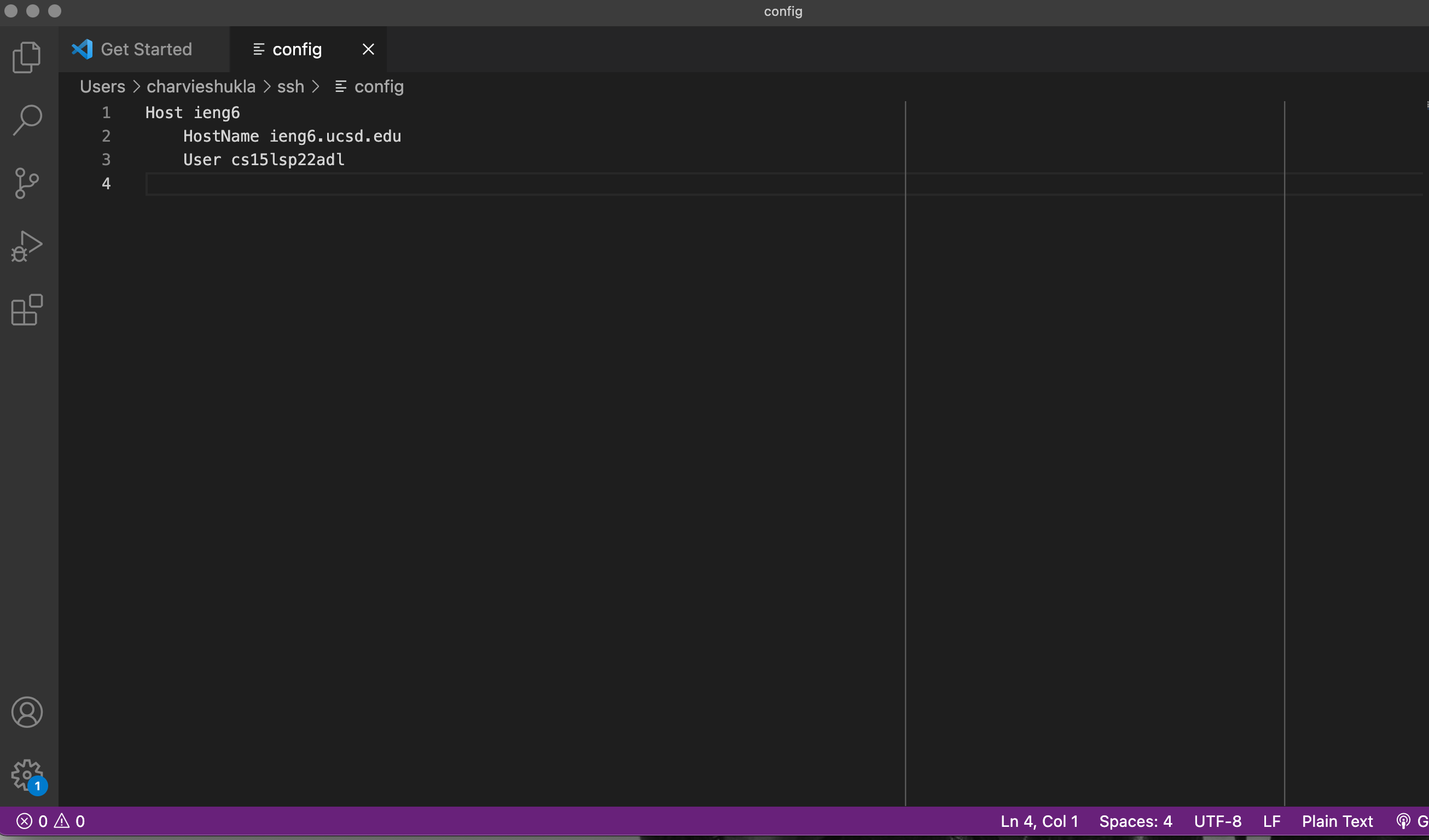
Then, in Visual Studio Code, I added the following lines into the config file:
Host ieng6
    HostName ieng6.ucsd.edu
    User cs15lsp22adl
Here is a screenshot from VS Code:
Step 2
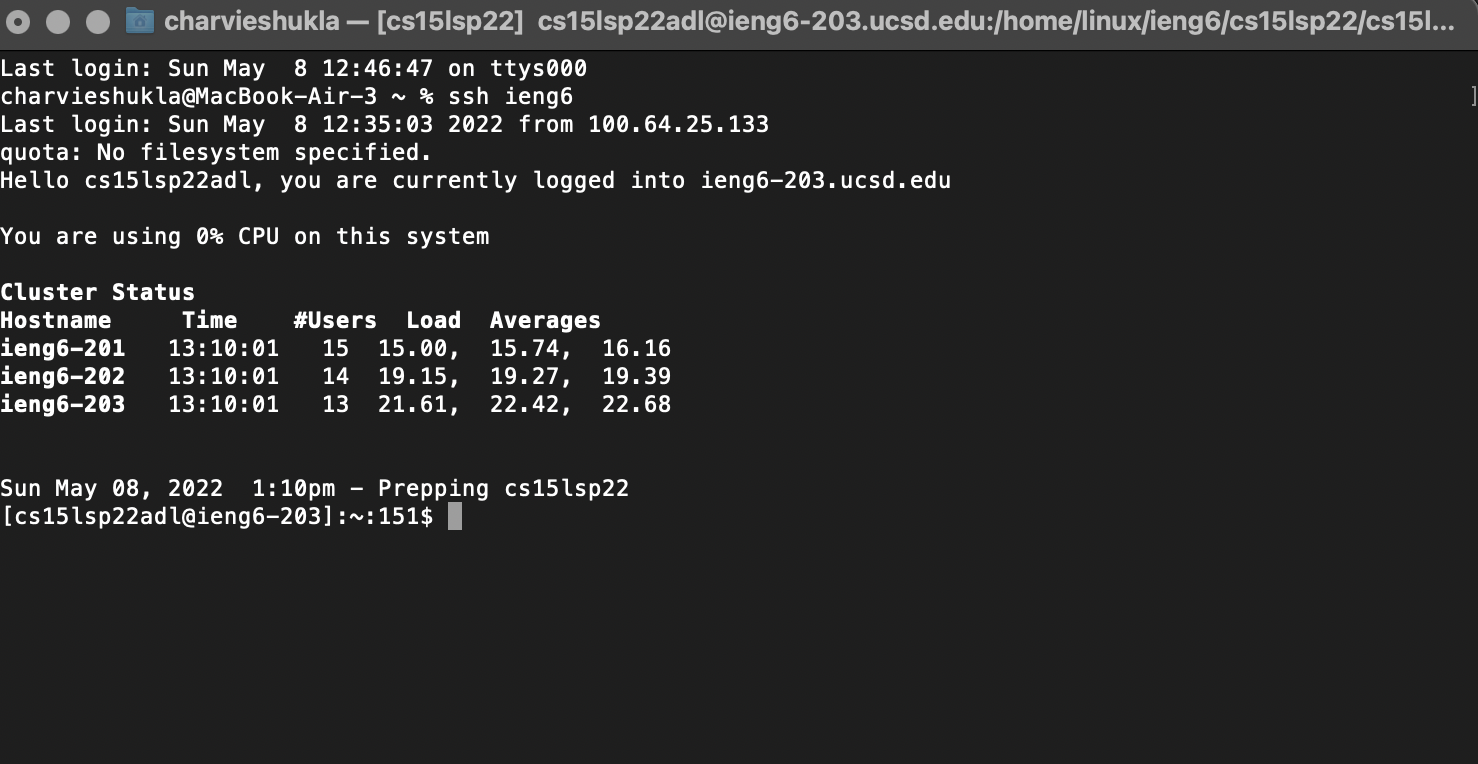
Now, when I go to terminal, I would only need to type in ieng6 to log into ieng6 instead of the entire email address. This would help save a lot of time.
Here is a screenshot from logging in:
Step 3
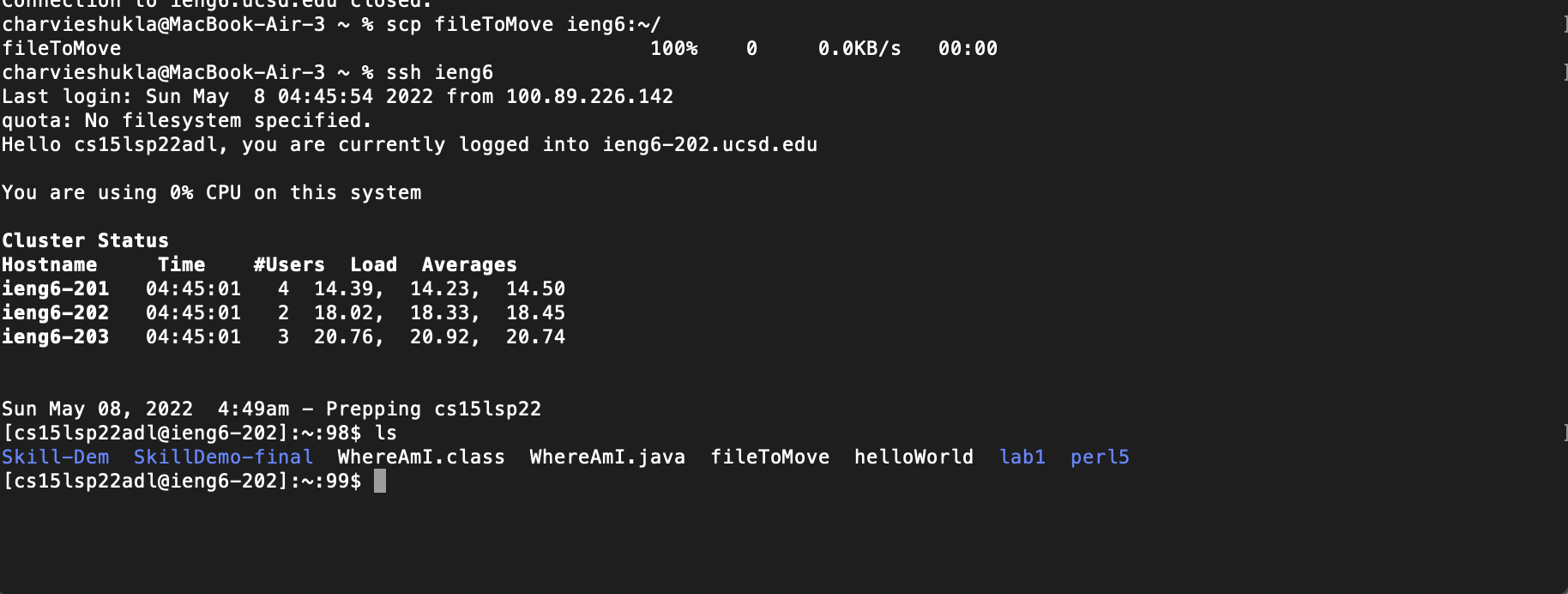
In addition, I would now be able to move around files using scp with just typing in ieng6. I created a random file called fileToMove and moved it to ieng6 for the demonstration.
Here is what that looks like:
Task 2: Setup Github Access from ieng6
Step 1: Creating keys using keygen
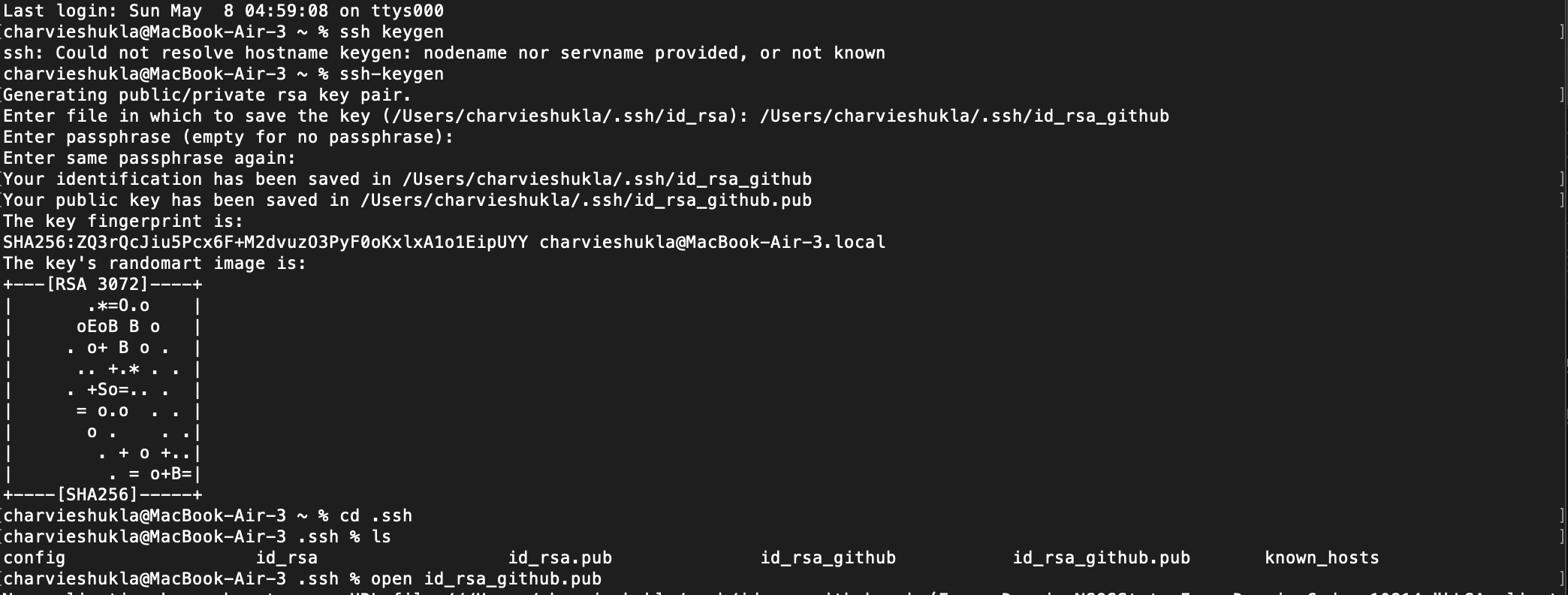
On the terminal, I typed ssh-keygen to create a set of private and public keys. They got stored in the .ssh directory.
Step 2: Copying over the Public Key
Then, I copied the contents of id_rsa_github using the command cat ~/.ssh/id_rsa_github.pub. Then I went on setting on GitHub and added my private key:
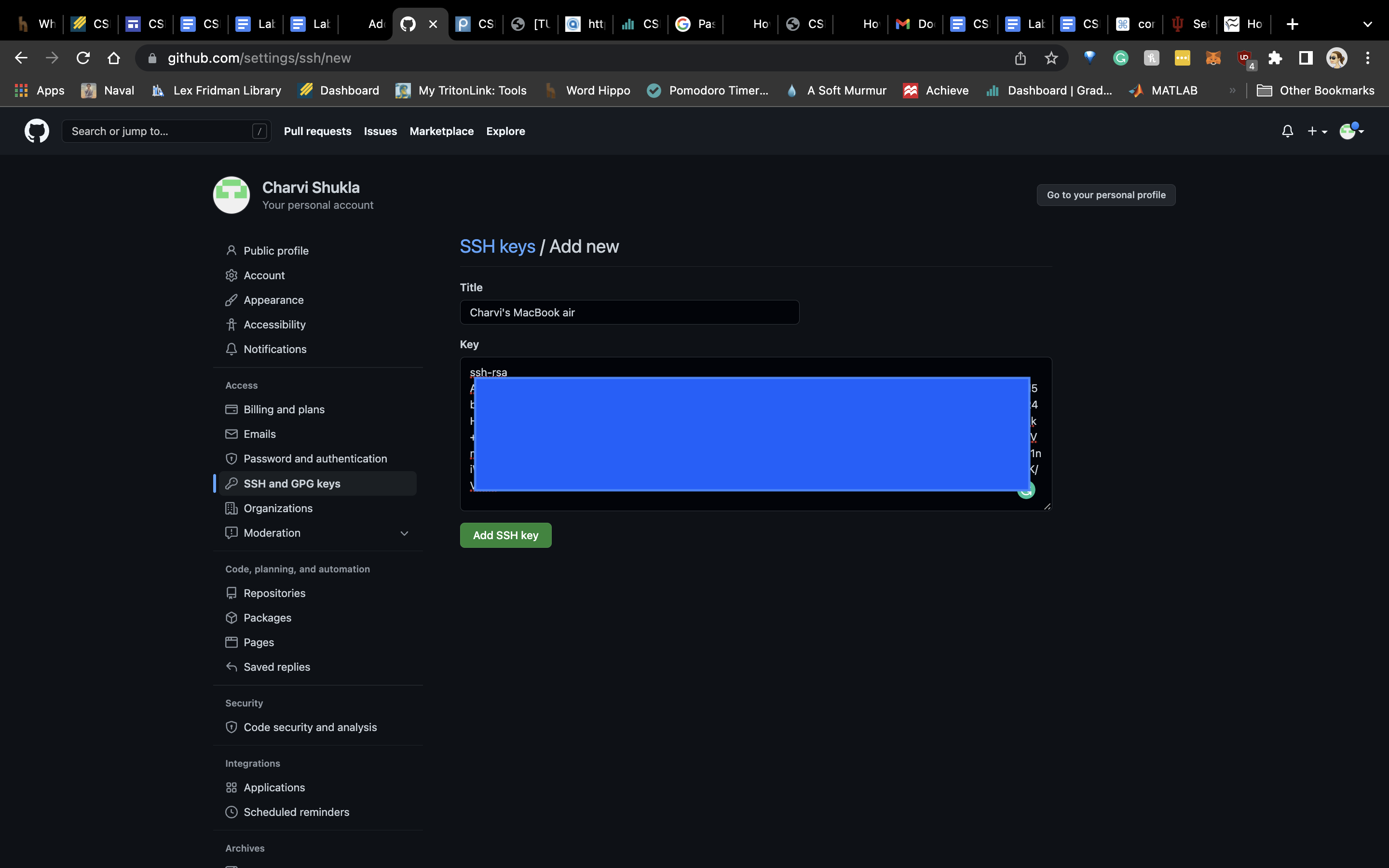
On hitting the Add SSH key button, I was able to see this:
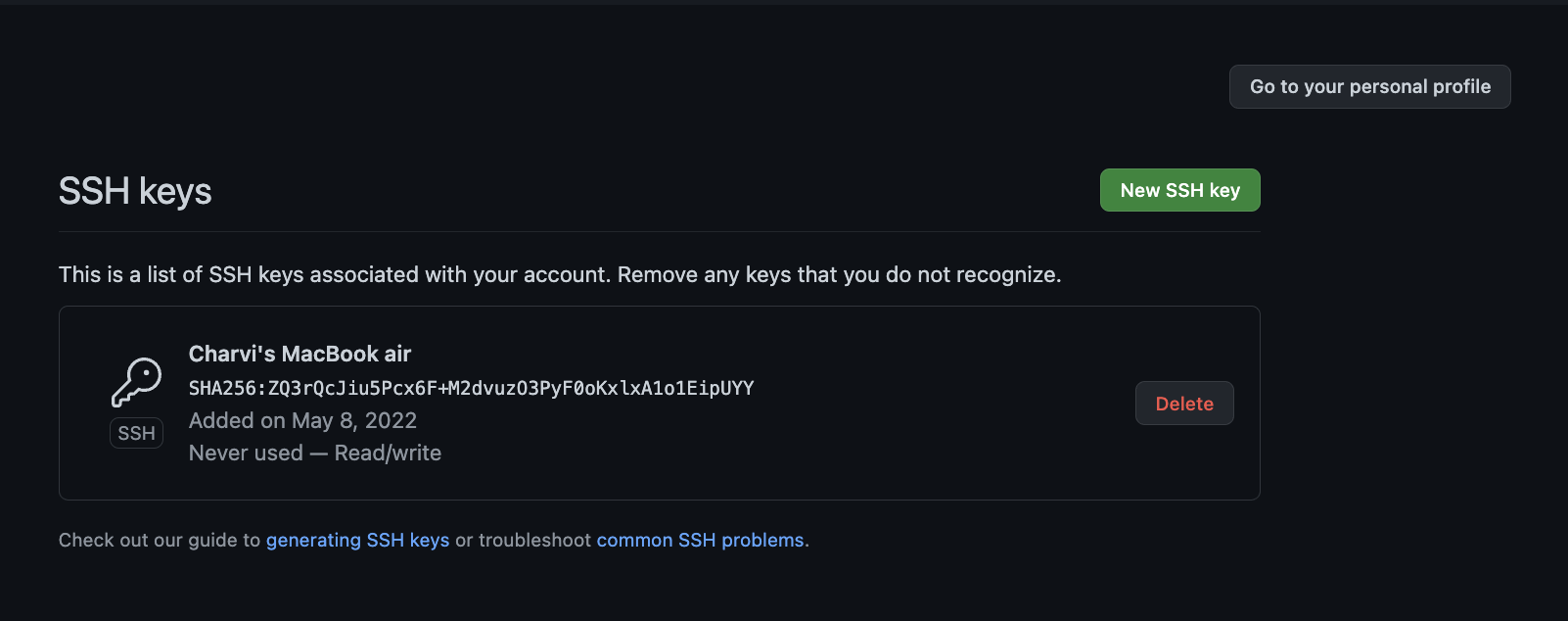
Step 3: Managing Multiple keys
I added the GitHub information to my config file as well, in order to save time.
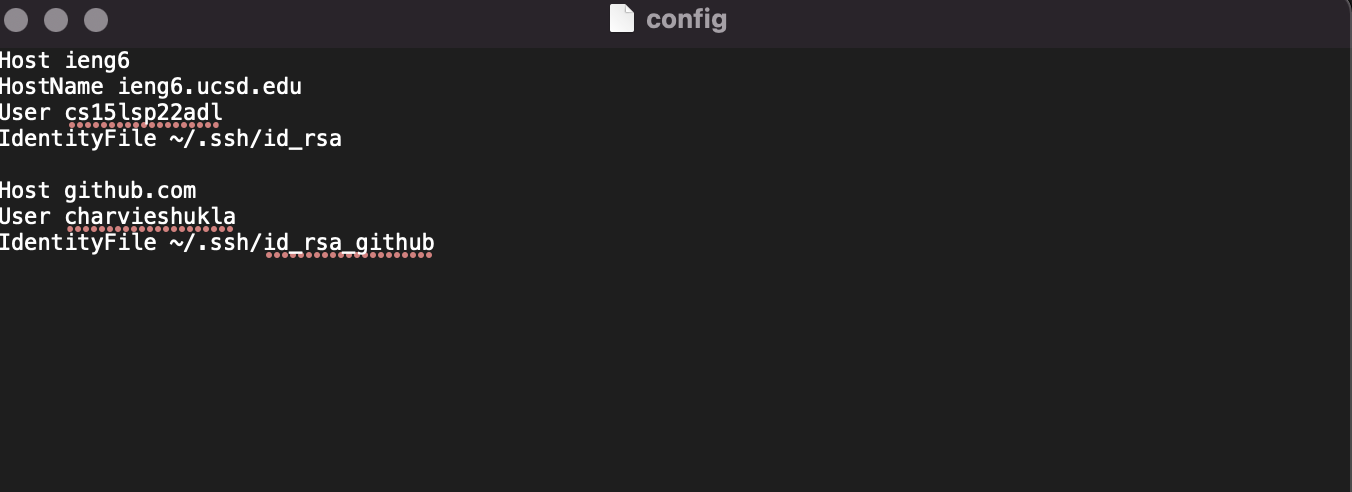
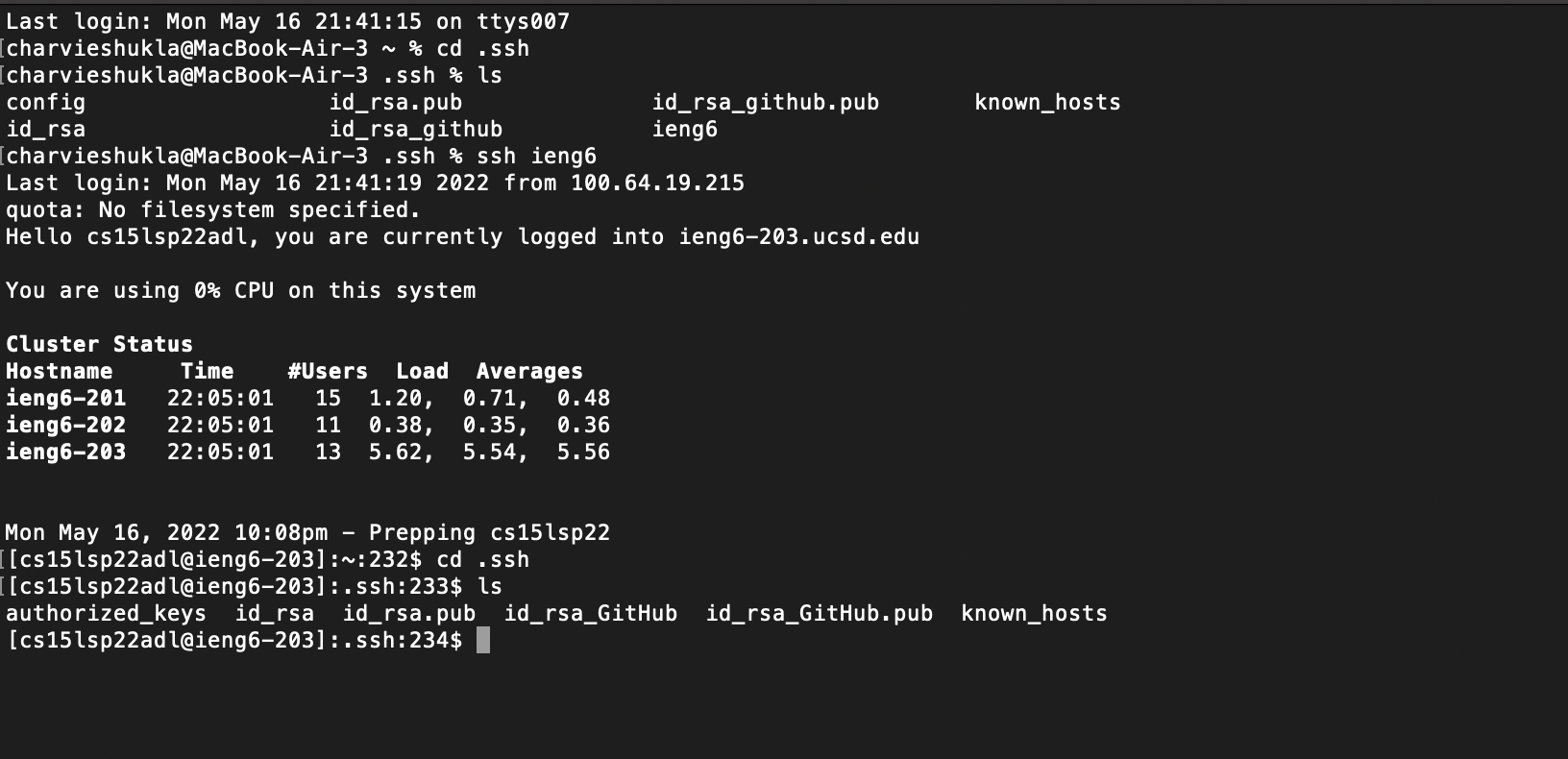
Step 4: PUBLIC KEY LOCATIONS
On GitHub:
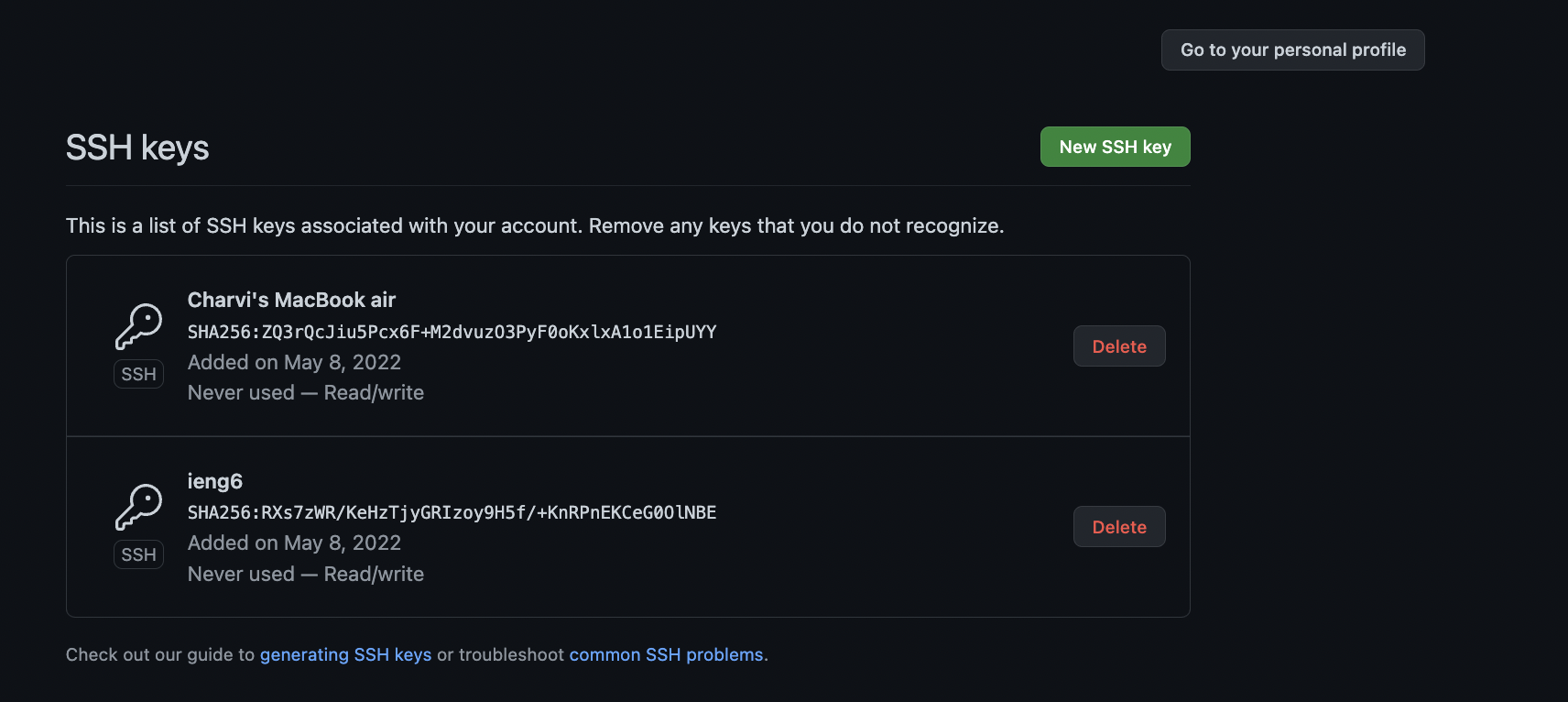
On my device:
Step 4: Using Git commands
In the next step, I made small edits to markdown-parser.java. Then, via the terminal, I staged the changes with the following command:
git add MarkdownParse.java
Then, I added a commit message:
git commit -m "adding a line"
And, finally, I pushed the changes to GitHub:
git push origin main
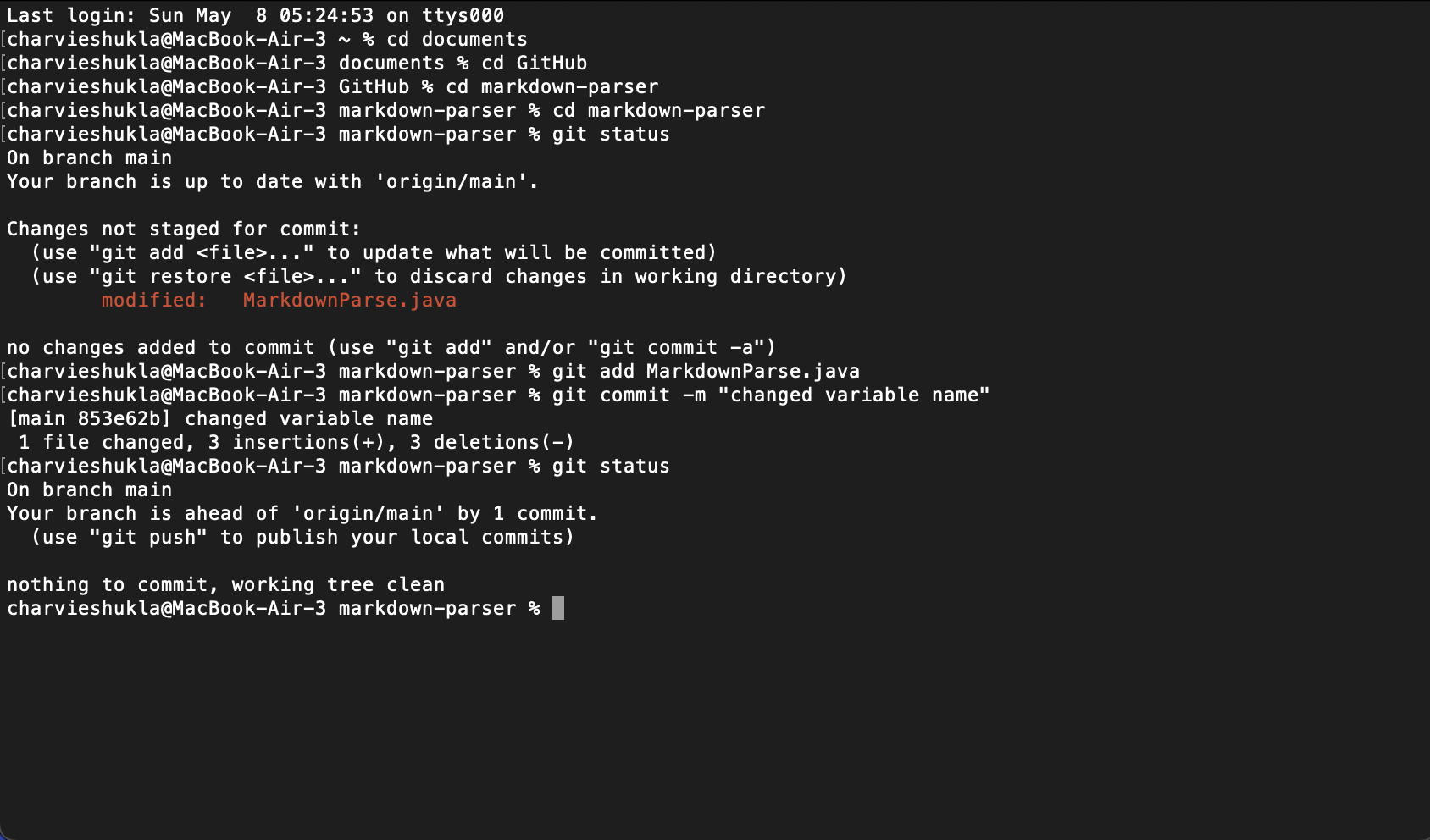
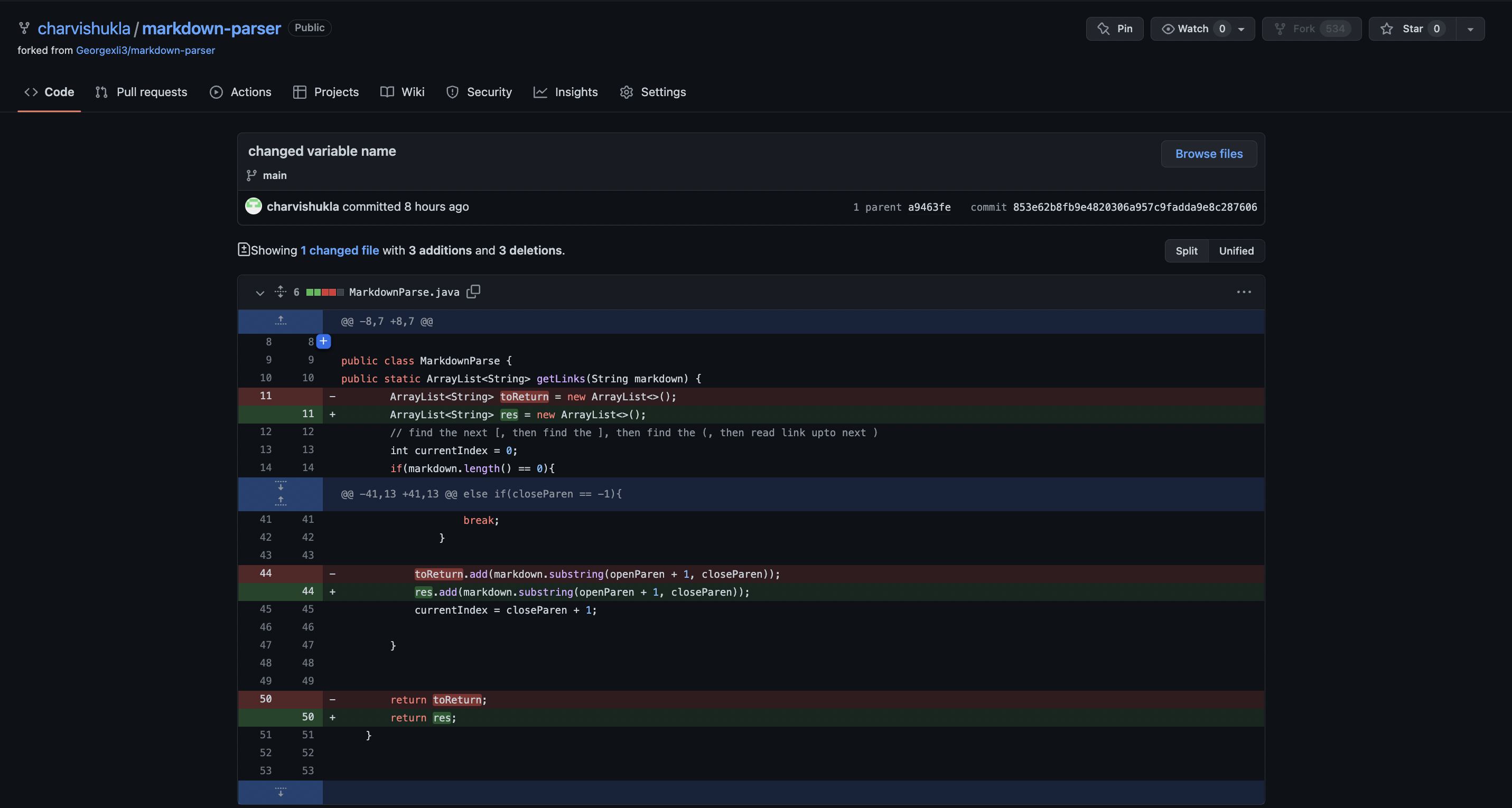
Yay! The changes have now been pushed! click here to view the commit link.
Link to the commit: link
Here is also a screenshot of the commit page:
Step 5: Repeating with ieng6
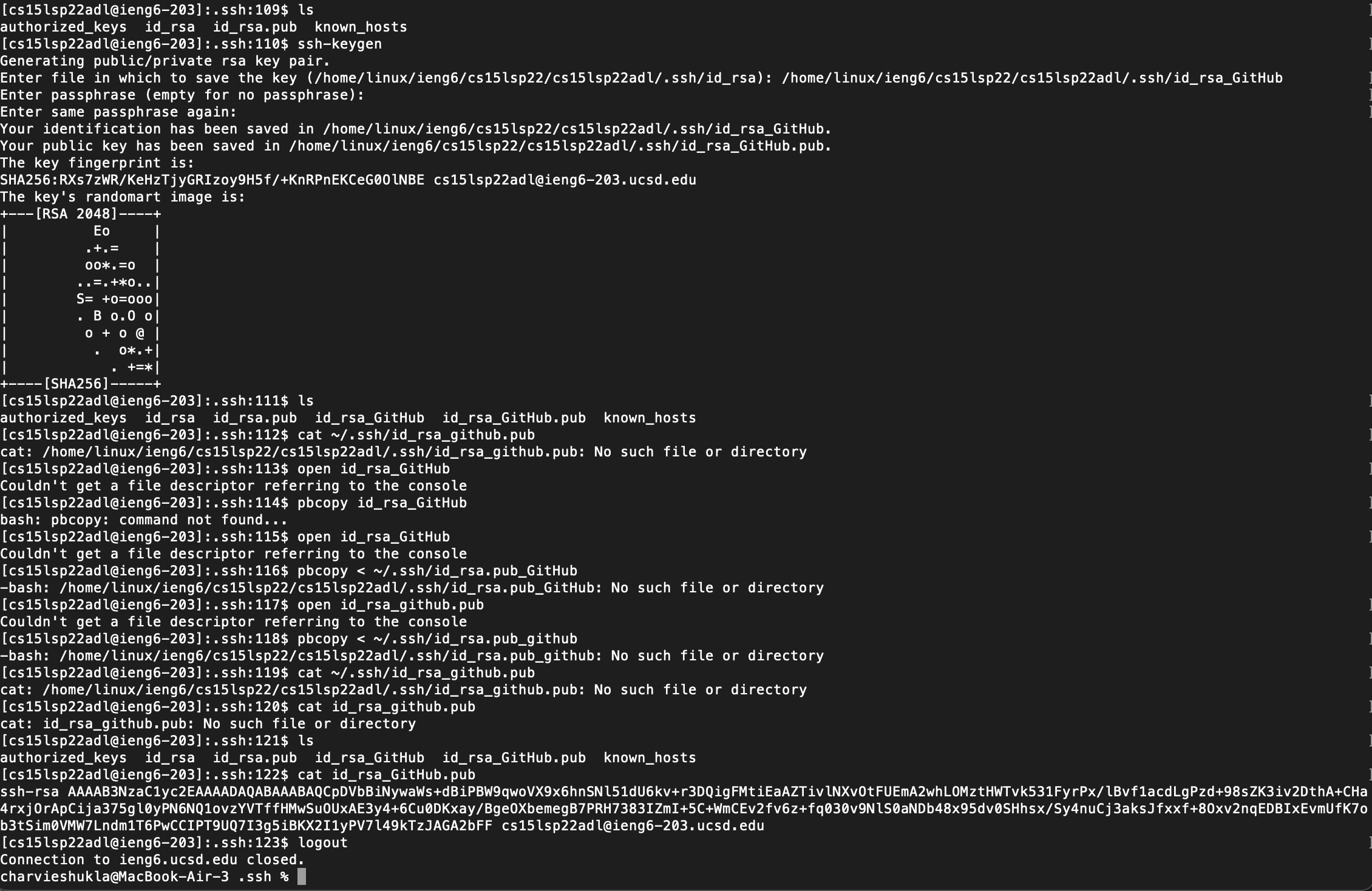
I repeated the same steps while being logged into ieng6. That is, I created keys using ssh-keygen and stored them on ieng6. Then i copied over the public key to GitHub and added the SSH key. After doing this, I would be able to use git commands while being logged into ieng6.
Generating keys and copying the public key:
STEP 7: Using git commands while logged into ieng6
Step 1: I first created a new repository called Lab_report3
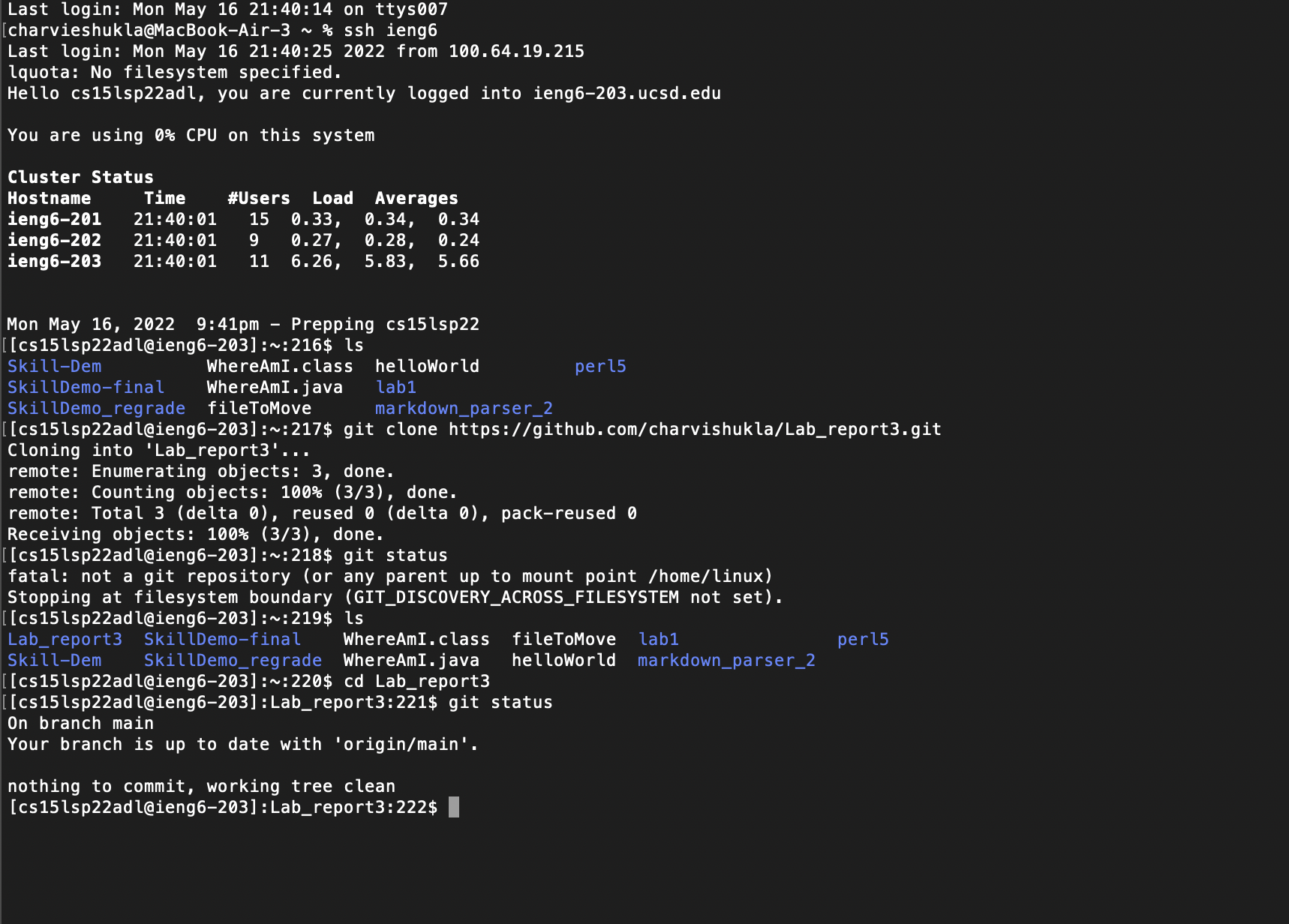
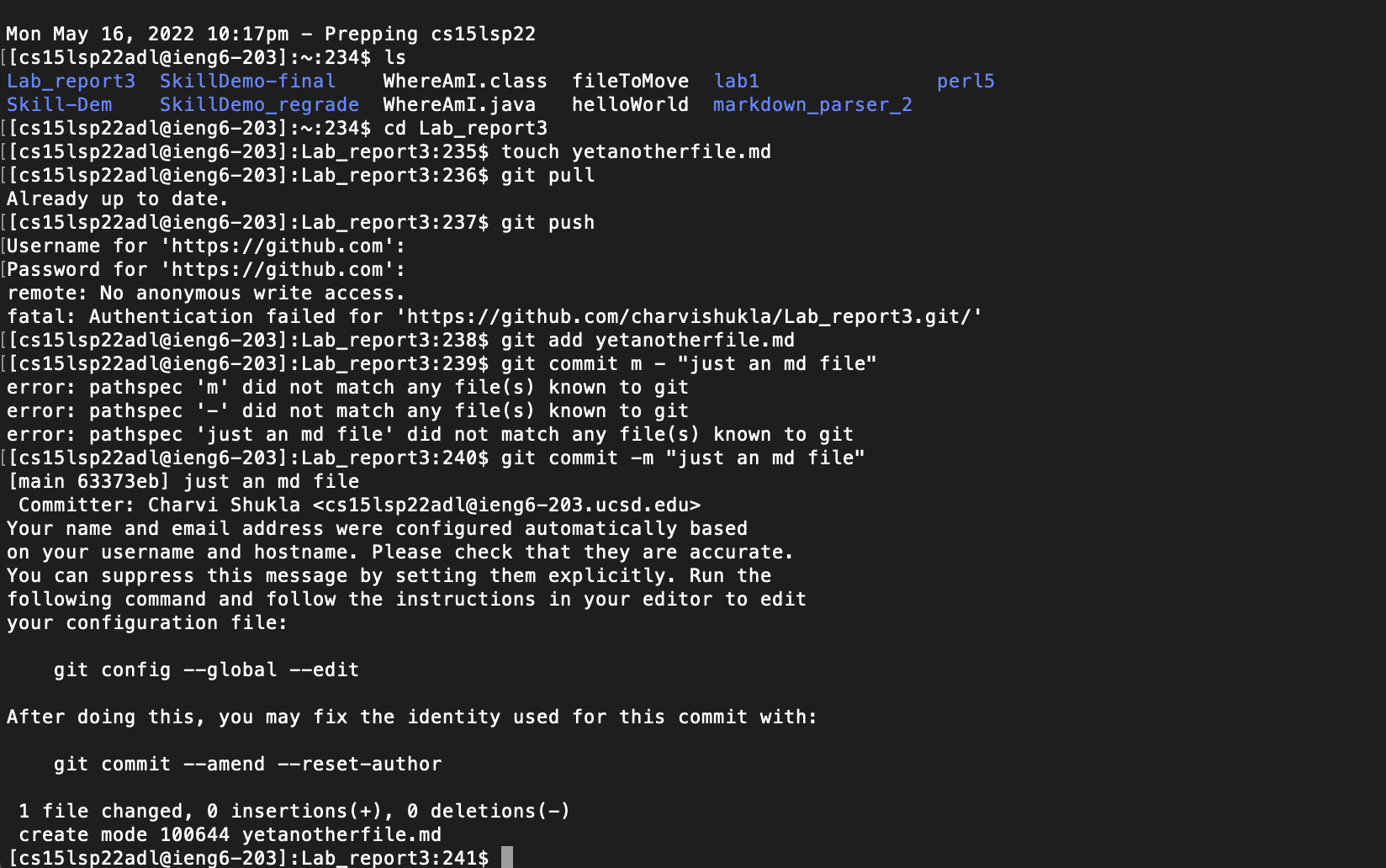
Step 2: Then i used the touch command to make a random markdown file in that repository. Then I used the git add and git commit m- commands to stage and commit the markdown file.
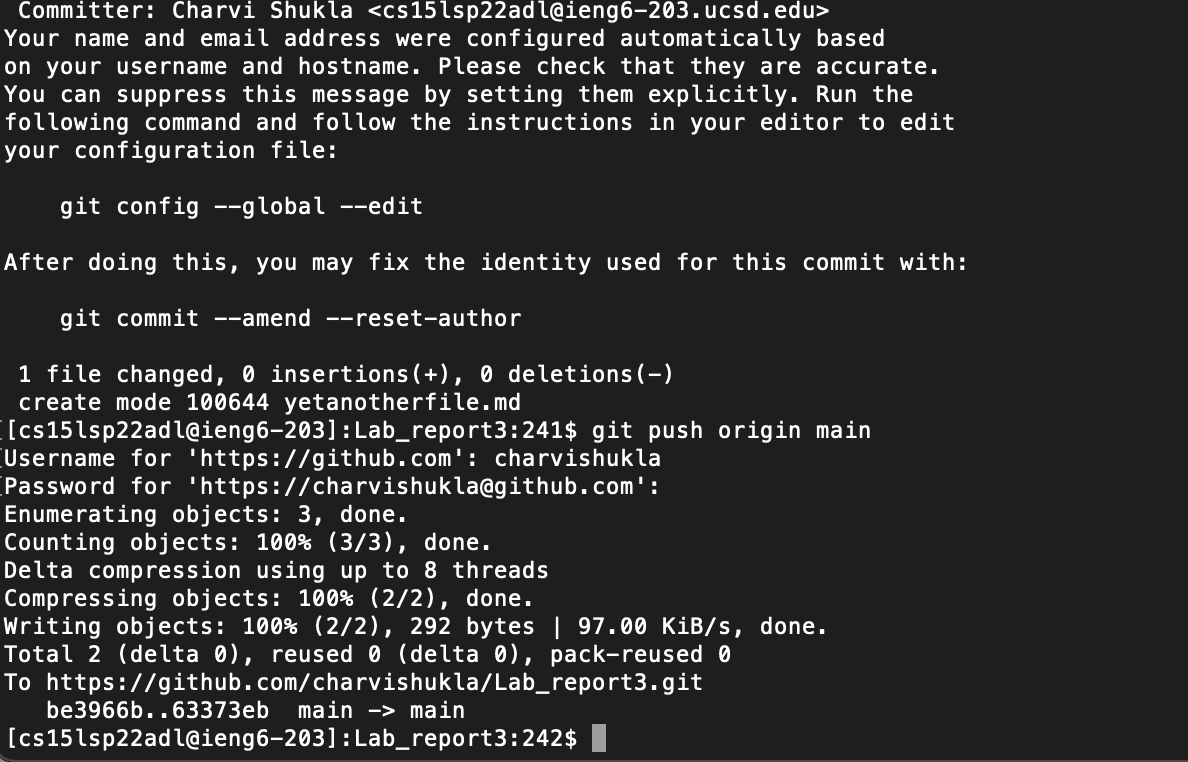
Step 4: I finally pushed the changes to github. To do so, I had to create a gpg authentication key. Here is the screenshot of pushing
Step 5: commit link:
Task 3: Copying whole directories with scp -r
Instead of copying each file in a directory one by one, using scp -r enables the user to be able to copy the entire directory at a time.
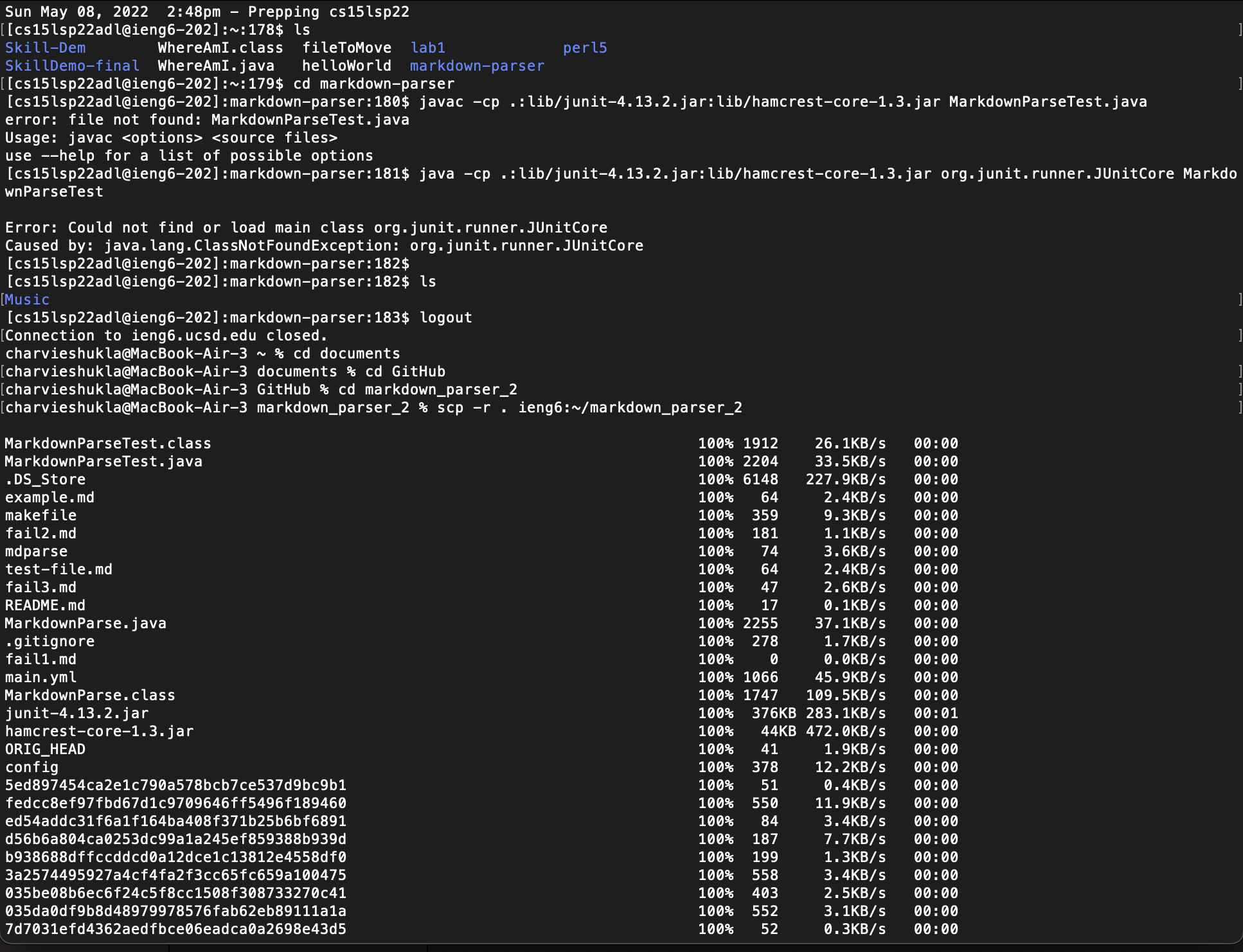
For this lab report, i will be copying over markdown_parse_2 to ieng6 using the following command.
Step 1: Copying files
I used the following command to copy the directory over:
$ scp -r . ieng6:~/markdown_parser_2
Step 2: Running the tester file
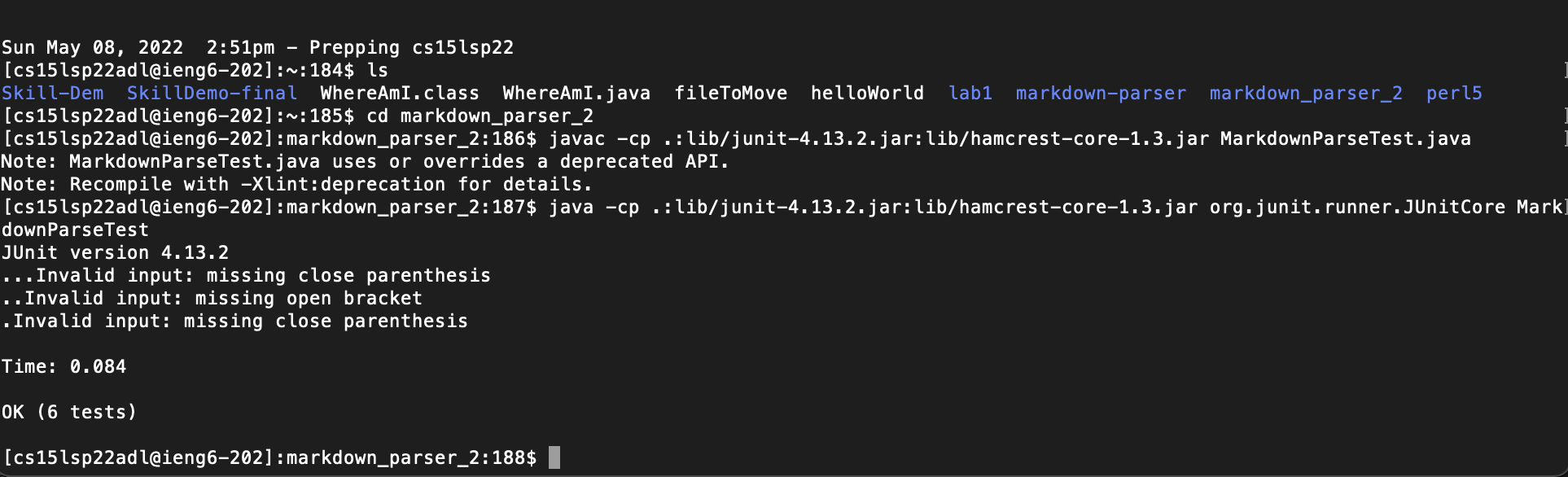
In order to run the tests, I first compiled the test file using:
javac -cp .:lib/junit-4.13.2.jar:lib/hamcrest-core-1.3.jar MarkdownParseTest.java
And then, I ran the test file using:
java -cp .:lib/junit-4.13.2.jar:lib/hamcrest-core-1.3.jar org.junit.runner.JUnitCore MarkdownParseTest
All the tests passed, and the terminal looked like this:
Step 3: combining scp, ;, and ssh to copy the whole directory and run the tests in one line
Before starting on this part of the lab report, i deleted the existing markdown_parser_2 version on ieng6 using rm -r markdown_parser_2.
To combine copying, going into ieng6 and running files into a single command, the following components need to be appended using a semicolon (;)
-
Location of
markdown_parser_2on my computer: /Users/charvieshukla/documents/GitHub/markdown_parser_2 -
Location of
markdown_parser_2on the remote server: ieng6:~/markdown_parser_2; ssh ieng6 cd markdown_parser_2; -
Compiling the test file: javac -cp .:lib/junit-4.13.2.jar:lib/hamcrest-core-1.3.jar MarkdownParseTest.java;
-
Running the test file: java -cp .:lib/junit-4.13.2.jar:lib/hamcrest-core-1.3.jar org.junit.runner.JUnitCore MarkdownParseTest`
Therefore, I used the following command on the terminal:
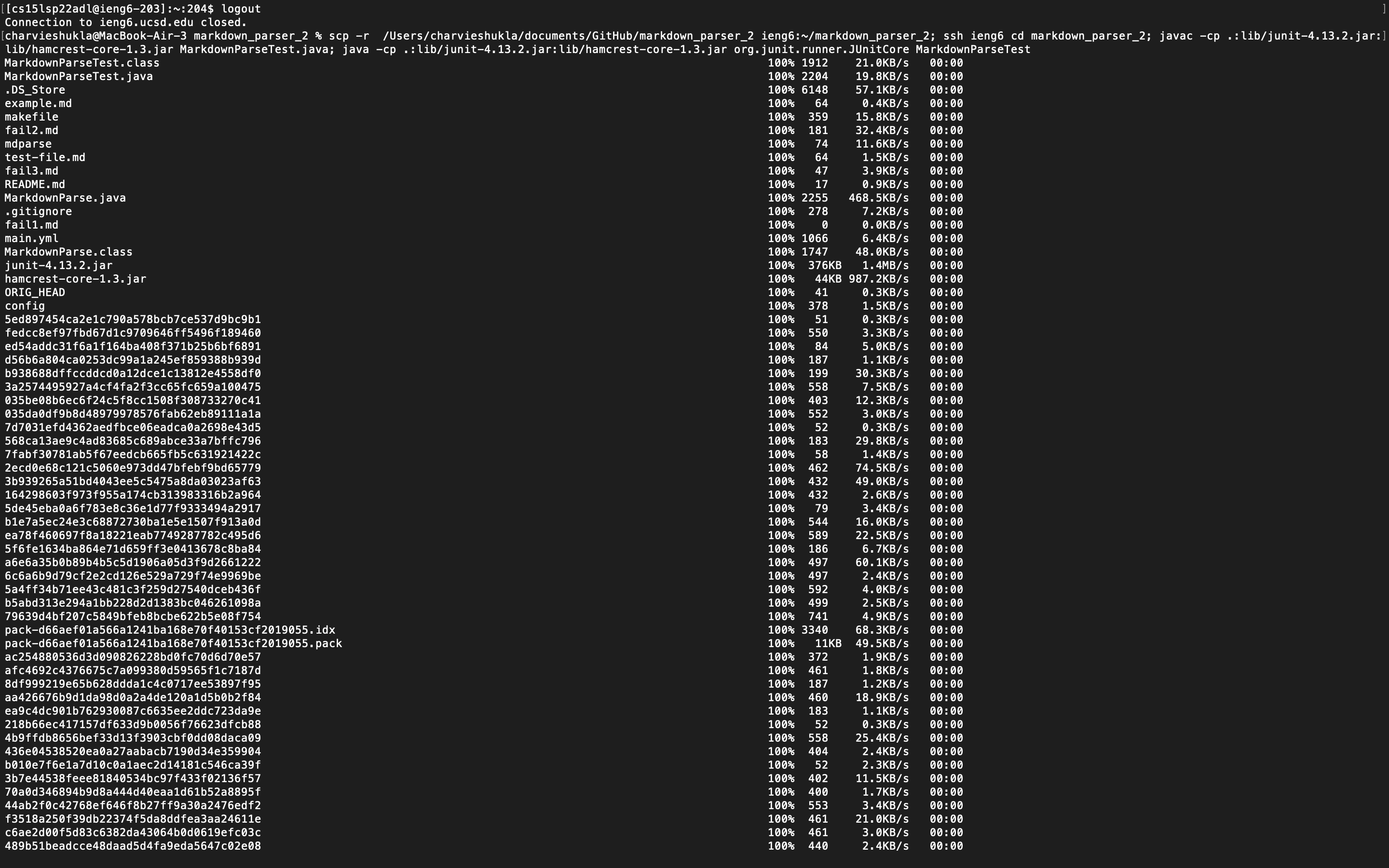
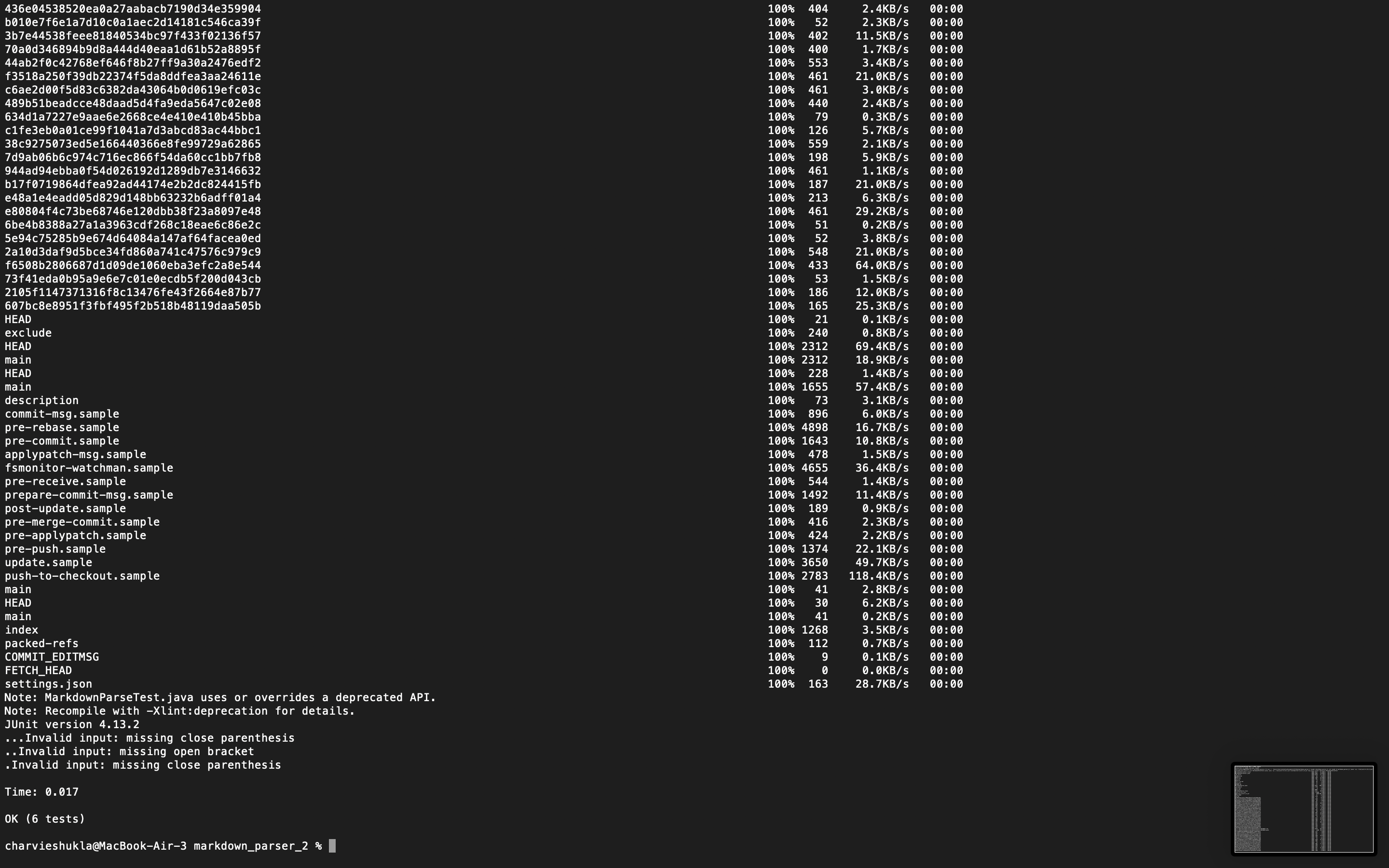
scp -r /Users/charvieshukla/documents/GitHub/markdown_parser_2 ieng6:~/markdown_parser_2; ssh ieng6 cd markdown_parser_2; javac -cp .:lib/junit-4.13.2.jar:lib/hamcrest-core-1.3.jar MarkdownParseTest.java; java -cp .:lib/junit-4.13.2.jar:lib/hamcrest-core-1.3.jar org.junit.runner.JUnitCore MarkdownParseTest
Here are screenshots of the command and the output:
Conclusion
This concludes my Lab report 3. Thank you for reading!